
Before you begin
-
To enforce SSO across your organisation, an Organisation Administrator must enable this setting.
-
Deactivating SSO requires raising a support request rather than flipping a switch back, confirm the setup you want before proceeding.
Overview
Single sign-on (SSO) lets you log in to eTool using a Google or Microsoft account instead of a separate eTool password. It works at two levels: an individual user can select it as their own sign-in method, or an Organisation Admin can enforce it across the entire organisation by domain, so that everyone signs in through your existing Google or Microsoft identity provider rather than an eTool password.
Beyond convenience — one less password for your team to remember, and a faster path into eTool — SSO is generally considered a security improvement too. Access runs through your existing identity provider, so your organisation's own password policies, multi-factor authentication, and access revocation apply to eTool automatically, rather than eTool credentials needing to be managed as a separate system.
Turning SSO off again isn't self-service at either level — once it's activated, deactivating it requires [submitting a support request](https://support.etool.app/index.php/faq/etoollcd-questions/how-do-i-request-for-support/).
Setting up SSO for your individual user profile
-
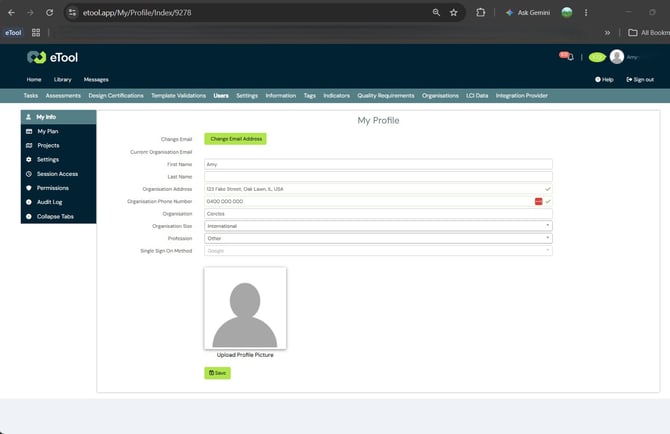
Open your account menu from the top right corner of the eTool dashboard and select My Profile.
-
In My Profile, find the Single Sign-On Method field.
-
Open its drop-down menu.
-
Select your preferred method — Google or Microsoft.
-
Click Save.
Setting up SSO across your organisation
You need to be an organisation admin to set enable this functionality. Once enforced by domain, everyone in the organisation signs in via Google or Microsoft instead of an eTool password.- Navigate to your Organisation's portal.
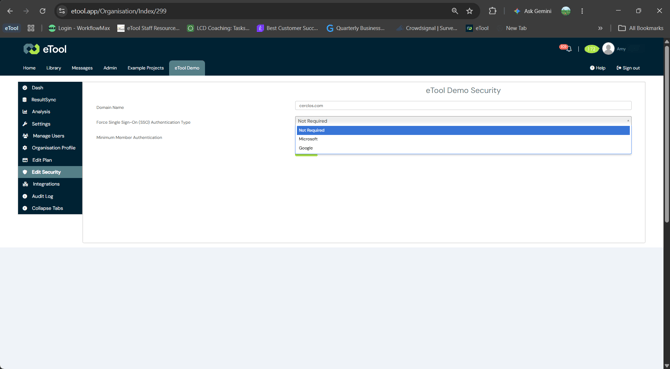
- Select Edit Security from the left-hand menu.
- Open the drop-down for Force Single Sign-On (SSO) Authentication Type.
- Select your preferred login method — Google or Microsoft.
- Click Save.
What sign-in looks like once SSO is active
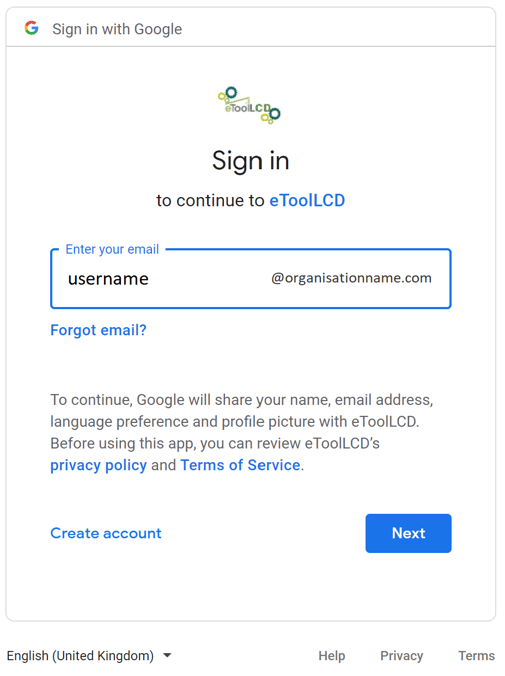
Once SSO is active, the eTool sign-in page shows a Google or Microsoft sign-in button in place of the standard email and password fields, depending on which provider was selected.
Identity provider permissions for your IT team
Many organisations restrict third-party apps from signing users in until an IT admin explicitly approves them — this is a tenant-level security setting most organisations already have in place, not something specific to eTool. If your team hits a permissions error on first sign-in, this is almost always the cause.
The first step is to contact your IT service desk to find out what your organisation requires here — they'll know which of these applies to your setup.
The fix may be along the lines of:
Microsoft 365 — if your tenant restricts user consent for third-party apps, an admin needs to grant tenant-wide admin consent to eTool before anyone can sign in with their Microsoft account. Without it, each user is prompted individually and may not have permission to approve it themselves. This guide covers the process: Grant tenant-wide admin consent to an application.
Google Workspace — Google Workspace can similarly block unconfigured third-party apps from accessing sign-in by default. An admin may need to explicitly allow eTool under Security settings in the Admin console before staff can sign in with their Google account. This guide covers the process: Control which third-party & internal apps access Google Workspace data.
Role- or group-based access controls — some organisations go a step further and manage application access through their identity provider's own roles or groups, rather than leaving any app open to everyone in the tenant. Microsoft Entra ID (Azure AD), for example, lets an admin restrict an Enterprise Application so that only assigned users, groups, or roles can sign in to it — separate from admin consent. If your organisation manages access this way, IT will need to assign the relevant users, groups, or roles to eTool within your identity provider; otherwise SSO can be fully configured on the eTool side and sign-in will still fail until that assignment is made.
If your team can already sign in without issue, none of the above applies — these only come up when a tenant has one of these restrictions turned on.
Related articles
- Creating your eTool user account
- New Login Verification — standard eTool login using a temporary PIN
- Organisation account setup