
There are two separate plugins, plus standalone installers. Which one you need depends on your Revit version.
| Your Revit version | Plugin | Where to get it |
|---|---|---|
| Revit 2025, 2026, 2027 | Standalone installer from eTool — one installer covers all three | Download from eTool (updated 28 July 2026) |
| Revit 2017–2024 | Autodesk App Store, or a standalone installer |
Autodesk App Store (updated 17 Sept 2024) **Standalone installer (see below) |
-
Revit Plugins
Autodesk changed the framework Revit is built on from Revit 2025 onward, so that needs a separate plugin. While Revit 2017–2024 uses our previous version. If you work across both old and new Revit releases, you can install both plugins on the same computer without conflict.
The 2025–2027 plugin is standalone only for now — it's with Autodesk for approval and isn't on the store yet.
-
Standalone Plugin Installers
Note for older Revit versions: Autodesk periodically updates the store installer’s default configuration to disable older versions even though we still support them. Running the plugin on these versions just requires a quick edit to its configuration file. If you're comfortable editing config files (and have the local permissions to do so), check out: Troubleshoot the Revit plugin and import.
If you are on one of these older versions, please let us know—knowing how many people still rely on them helps us decide where to focus our development efforts.
Standalone installers are the fallback. For Revit 2024 and earlier they cover one Revit version each, so you'll need two if you run both 2023 and 2024.
| Installer | Revit versions |
|---|---|
| eTool Revit Plugin 2025 Plus Standalone v8.0 | 2025–2027 |
| eTool Revit Plugin 2024 Standalone V7.0 | 2024 |
| eTool Revit Plugin 2023 Standalone V6.1 | 2023 |
| eTool Revit Plugin 2022 Standalone V6.1 | 2022 |
| eTool Revit Plugin Standalone V6.0 | 2017–2021 |
Before you start
- Autodesk Revit, installed and licensed
- An Autodesk account (for the App Store version)
- An eTool account
- A project and design already created in eTool. The plugin links to a design that exists; it can't create one. This is the single most common reason people can't find what they're looking for in the plugin later.
Install
- Close Revit — every running instance. The installer can't replace files Revit has open, and this is the most common cause of an install that appears to succeed but doesn't.
- Run the installer. Double-click the MSI or EXE. It's a standard Windows installer — accept the terms and click through the wizard.
- If Windows SmartScreen blocks it, select More info → Run anyway. SmartScreen flags installers it hasn't seen widely distributed, which includes most specialist engineering plugins.
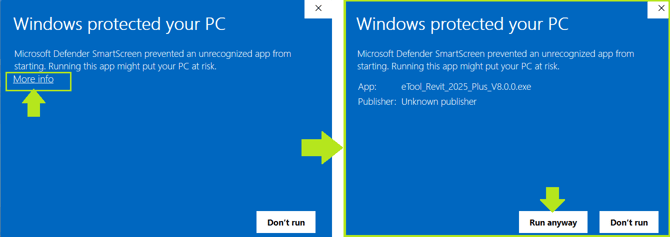
- Open Revit and open a project. The eTool tab appears at the end of the ribbon along the top. It won't appear on Revit's start screen — you need a project open.
Log in
On the eTool tab you'll see eTool editor button on the left: which contain Login and Launch eTool.
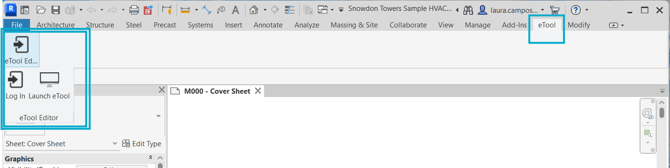
Only Login works to begin with. Link becomes available once you're signed in, so it doubles as a check: if it hasn't, your login didn't go through.
Click Login, enter your eTool username and password in the pop-up window. A browser window opens to your eTool home page.
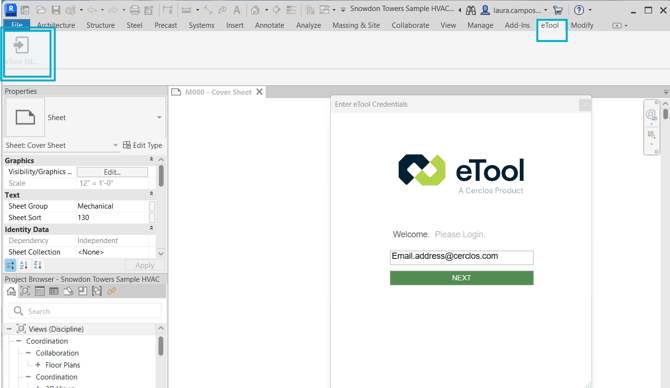
Once you're in, work left to right: Link → Update → Launch. The button order is the workflow order, and the buttons appear as you earn them — Update only shows up once a design is linked.

Update button active

A note on branding. If you're on a plugin for Revit 2024 or earlier, the login pop-up shows the older eToolLCD logo and application name. This is cosmetic only — the plugin works normally. The 2025–2027 plugin shows current eTool branding.
Next: Prepare your Revit model before importing, or go straight to Link and send your Revit model to eTool.
If the eTool tab doesn't appear, see Troubleshoot the Revit plugin and import rather than reinstalling blindly — the fix depends on your Revit version.
Don't install both versions. Pick either the Autodesk store version or a standalone installer if you target the same Revit version E.g don't install standalone 2022 and 2017-2024 Autodesk store version, having both on the same machine causes problems. If you're switching from one to the other, uninstall the first before installing the second. However, you can install the Autodesk store version (2017-2024) alongside the standalone 2025-2027 plugin.
To check what you already have, open Settings → Apps → Installed apps and look for the eTool plugin. The version number is listed beside it.
Uninstall
- Close every running instance of Revit.
- Go to Settings → Apps → Installed apps (older Windows: Apps & features → Add or remove programs).
- Find your version — depending on when it was installed it may be listed as eTool Plugin, eTool Revit Plugin, or eTool.Revit 20XX Vx.x.
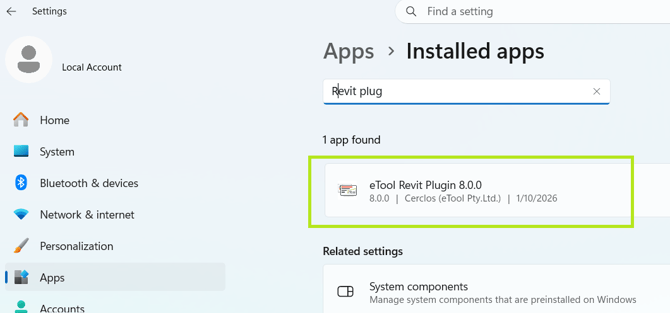
- Select Uninstall.
Uninstalling doesn't affect anything in eTool. Your designs, links and matches are stored server-side and will be there when you reinstall.
Upgrading
Install the new version over the old one — there's no separate upgrade path. If that causes any problem, uninstall first and install clean.
The plugin will disable itself and prompt you to update if eTool's API changes in a way that makes your version unreliable. This is deliberate: an outdated plugin pushing data against a changed API could produce a design that looks fine and is quietly wrong, so we stop it rather than let it run.